 C
C Cursor
Cursor is an AI-native code editor best for developers who want codebase-aware editing, multi-file changes, and agent-style coding workflows. It may not be ideal for teams that must stay inside JetBrains, Visual Studio, Neovim, or another existing IDE; in those cases, an IDE-based assistant like GitHub Copilot is usually the safer comparison.
Quick answer
Cursor is an AI-native code editor best for developers who want codebase-aware editing, multi-file changes, and agent-style coding workflows. It may not be ideal for teams that must stay inside JetBrains, Visual Studio, Neovim, or another existing IDE; in those cases, an IDE-based assistant like GitHub Copilot is usually the safer comparison.
Cursor may be less ideal if your team must stay inside JetBrains, Visual Studio, Neovim, or another required IDE. In that case, an IDE assistant such as GitHub Copilot is usually the safer comparison path because it adds AI assistance without forcing an editor switch.
What is Cursor?
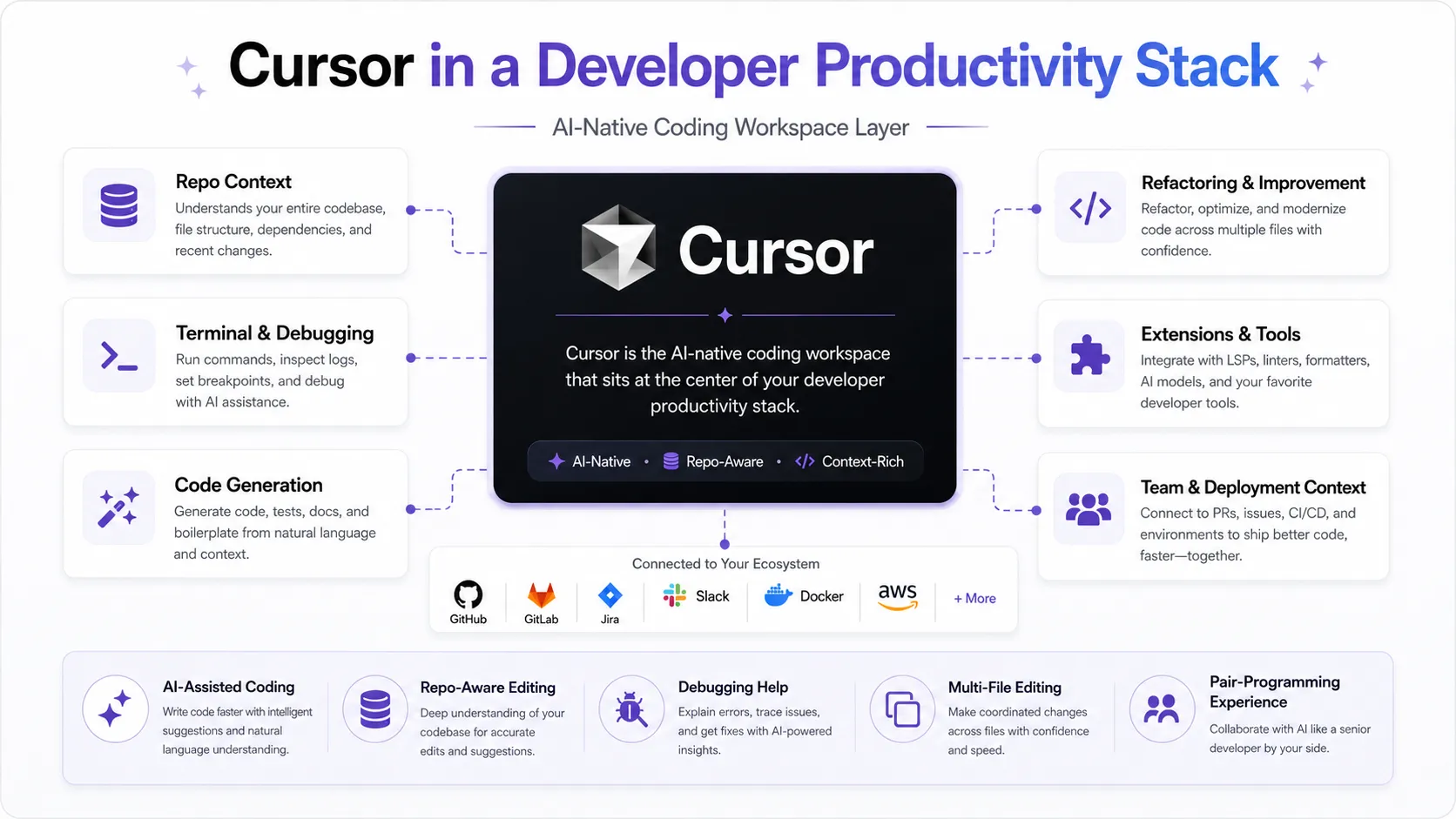
Cursor is an AI-first code editor built on a VS Code-style workflow. The difference from a lightweight autocomplete plugin is scope: instead of only suggesting the next line in isolation, Cursor can use repository structure, files, imports, routes, components, and surrounding context to answer questions, propose changes across multiple files, and support agent-style edits that would otherwise require manually opening each file. The result is an editor where AI becomes part of the development loop rather than a separate tool you switch to in a browser tab.
Who Cursor fits best
Cursor fits best for full-stack developers, solo builders, and engineering teams working on real codebases where AI needs to understand more than the current file.
- ✓Developers who want AI deeply integrated into the code editor itself
- ✓Full-stack developers working across larger repositories and multiple files
- ✓Teams testing agent-style coding workflows before standardizing on an AI editor
Not ideal for
- •Teams locked into JetBrains, Visual Studio, or another required IDE
- •Non-developers who need a general AI assistant rather than a coding editor
- •Users who only need lightweight autocomplete inside their current editor
Main use cases
Codebase-aware editing
Use Cursor when the question is not just about one snippet, but about how files, imports, routes, components, or services connect across a repository. This is where an editor with project context becomes more useful than a simple autocomplete assistant, especially on codebases too large to hold in your head at once.
Multi-file changes
Cursor is useful when a change touches several files at once, such as a refactor, route update, component rename, or API integration. The value is highest when AI can reason across the codebase and propose a coordinated set of edits rather than suggesting one isolated line at a time.
AI-native development
Cursor fits developers who want chat, edit suggestions, and agent-style coding to live inside the editor workflow rather than in a separate browser tab. It is best when you are willing to adopt Cursor as the main coding surface and treat AI as a collaborator in the loop, not an external tool.
Repository Q&A
Cursor can help you explore an unfamiliar codebase before editing: ask how a feature works, where logic lives, what files matter, or what may break if you change a module. This is especially helpful during onboarding to a new project or when auditing code you did not write.
Where Cursor fits in the AI stack
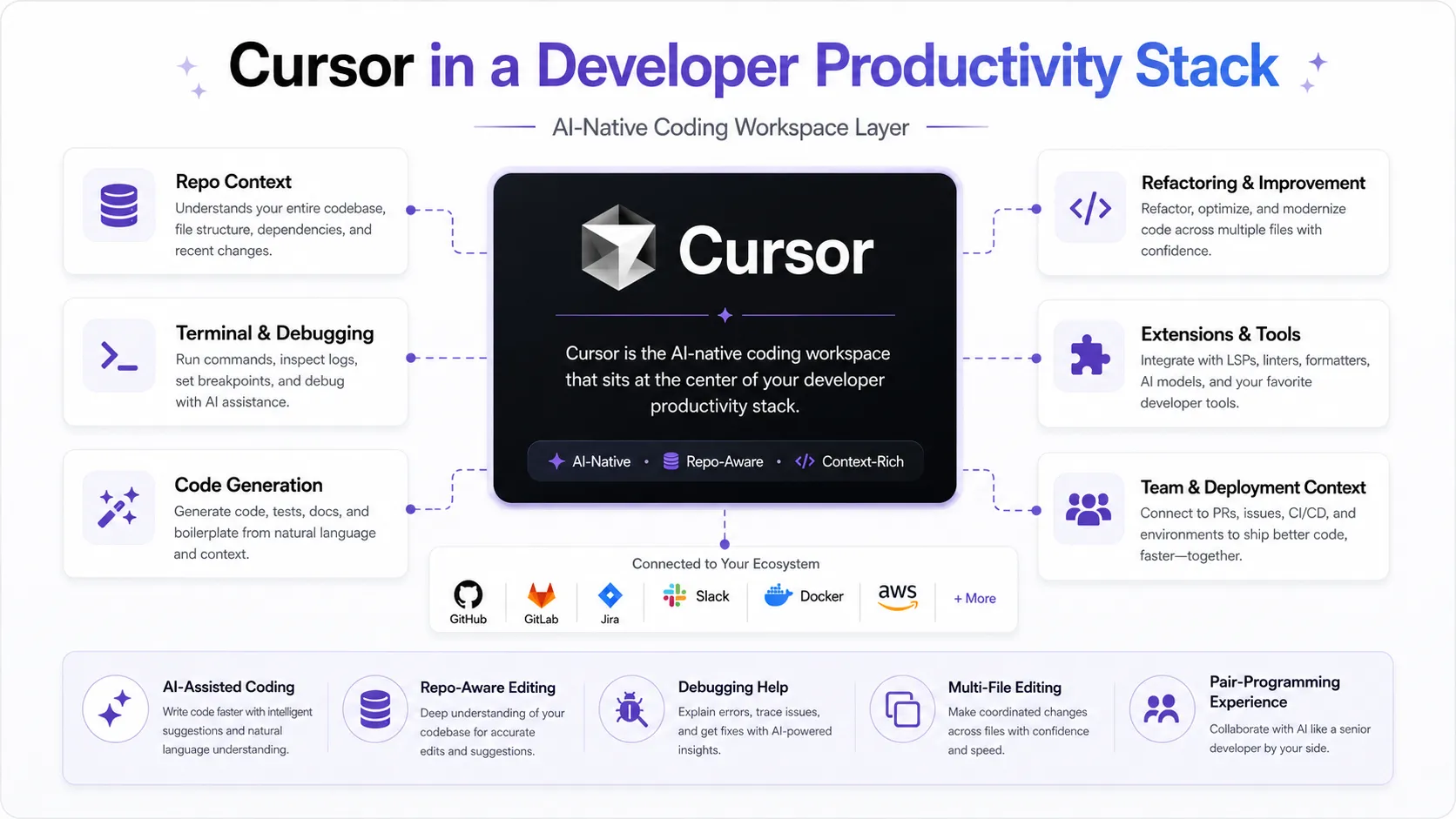
Cursor works best as the coding layer inside an AI developer stack. It helps developers write, edit, refactor, debug, and understand code inside the editor, but it still needs surrounding tools for planning, version control, deployment, monitoring, and broader reasoning.
Stack role
AI coding workspace
Best paired with
Claude, ChatGPT, GitHub
Strongest layer
Coding + Debugging
| Stack layer | Fit | What to know |
|---|---|---|
| Research | weak | Cursor can explain code and project structure, but it is not a web research or market research tool. |
| Planning | medium | Useful for technical planning inside a codebase, but broader product planning usually needs another tool. |
| Coding | strong | This is Cursor's strongest role — writing, editing, navigating, and changing code inside the editor. |
| Debugging | strong | Helpful for tracing bugs across files and understanding how code connects. |
| Deployment | weak | Cursor can edit deployment configuration, but it does not replace deployment platforms. |
| Team collaboration | medium | Cursor can support team coding workflows, but version control and issue tracking still need dedicated tools. |
Best stack combinations
Solo developers
Cursor + Claude + GitHub + Vercel
A lean stack for building, reasoning through code, saving changes, and deploying small projects without adding too many tools.
Startup builders
Cursor + ChatGPT + GitHub + Linear + Notion
A practical stack for moving from product idea to implementation while keeping planning, code, and team notes separated.
Production teams
Cursor + GitHub + Claude + Sentry + Linear
A more complete stack for teams that need coding help, issue tracking, collaboration, and production monitoring.
What Cursor can replace
- · A basic code editor for AI-assisted coding workflows
- · Some manual code explanation and repository navigation tasks
- · Some repetitive refactoring and multi-file editing work
What it still needs
- · GitHub: Version control, pull requests, and collaboration
- · Claude or ChatGPT: Broader reasoning, planning, and architecture discussion
- · Vercel or Netlify: Deployment for web apps and frontend projects
- · Linear or Jira: Planning, issue tracking, and team coordination
- · Sentry or LogRocket: Production error monitoring and debugging feedback
Add it to your stack if
- · You write code regularly
- · You work inside existing codebases
- · You want AI help directly inside the editor
- · You need faster debugging, refactoring, or multi-file editing
Skip it if
- · You only need general AI chat
- · You do not code often
- · You prefer simple browser-based AI tools
- · Your current coding workflow rarely changes
Choose your next step
Pricing
→Check free, Individual, Teams, and Enterprise plan fit before making Cursor a daily editor.
Alternatives
→Compare Cursor with IDE assistants, AI-native editors, browser-based coding tools, and adjacent developer AI tools.
Compare options
→AI-native editor vs IDE-based pair programmer.
Stack fit
→See how Cursor fits into a complete AI coding workflow.
Deal
→Check whether Cursor has a free path, trial, coupon, or safe savings route.
Review
→Read the full editorial review when available.
Pricing summary
This is a profile-level summary. Use the pricing page for deeper plan checks.
Starting path
Free Hobby / Individual from $20/mo
Free plan
Yes
Free trial
No
Cursor's public pricing currently lists a free Hobby path, Individual plans starting from $20/month, Teams at $40/user/month, and custom Enterprise options. Cursor also shows multiple Individual tiers on the live pricing page, so treat this profile as a pricing orientation and verify the current plan names, included usage, and model access before checkout.
Best starting path: Start with the free Hobby path or a monthly Individual plan on a real project before choosing annual billing. Cursor's value depends less on a feature checklist and more on whether repo-aware chat, multi-file edits, and agent-style work become part of your normal coding week.
Related stack page
Top alternatives
See all →Direct alternatives

Adjacent tools in the same stack


Related comparisons
FAQ
What is Cursor best for?
Cursor is best for developers who want an AI-native editor with codebase context, chat, multi-file editing, and agent-style coding built into the development workflow. It is strongest when the editor itself can become the place where you ask questions, reason about the codebase, edit files, and review changes without switching tools.
Does Cursor have a free plan?
Yes. Cursor currently lists a free Hobby path, while paid Individual plans start from $20/month. Buyers should verify live usage limits, included AI request details, and model access on Cursor's official pricing page before checkout, as these can change.
Is Cursor a replacement for GitHub Copilot?
Sometimes. Cursor is the better choice if you want to work inside an AI-native editor with stronger repo context and multi-file editing. GitHub Copilot is usually safer if you want AI assistance inside your current IDE without switching editors. The right choice depends on whether you are willing to change your primary coding environment.
Is Cursor worth paying for?
Cursor is most likely worth paying for when repo-aware chat, multi-file edits, and agent-style work save meaningful time in your weekly coding workflow. If you only need occasional autocomplete, start with the free Hobby path or compare GitHub Copilot before upgrading to a paid plan.
Who should skip Cursor?
Teams that cannot leave JetBrains, Visual Studio, Neovim, or another required IDE should compare Cursor carefully with IDE-based assistants before switching. Non-developers looking for a general AI assistant should also start elsewhere — Cursor is a coding environment, not a general-purpose AI tool.
How TopAIStacks evaluates Cursor
TopAIStacks evaluates Cursor by workflow fit, pricing clarity, setup difficulty, editor-switching friction, alternatives, and whether the tool solves recurring developer problems rather than one-off novelty tasks. Pricing notes are treated as a last-checked snapshot, not a guarantee, because Cursor plan names, included requests, and model access can change.
Last checked: May 2026 · Source confidence: medium