
Microsoft Copilot Review
Microsoft Copilot review for 2026 buyers: where it fits, who should use it, pricing context, strengths, limits, and alternatives.
Strong Microsoft 365 workflow fit, but the value depends heavily on licensing, adoption, and how much of your work already sits inside Microsoft.
Use it if…
- ✓ Your documents, meetings, email, and internal files already live in Microsoft 365.
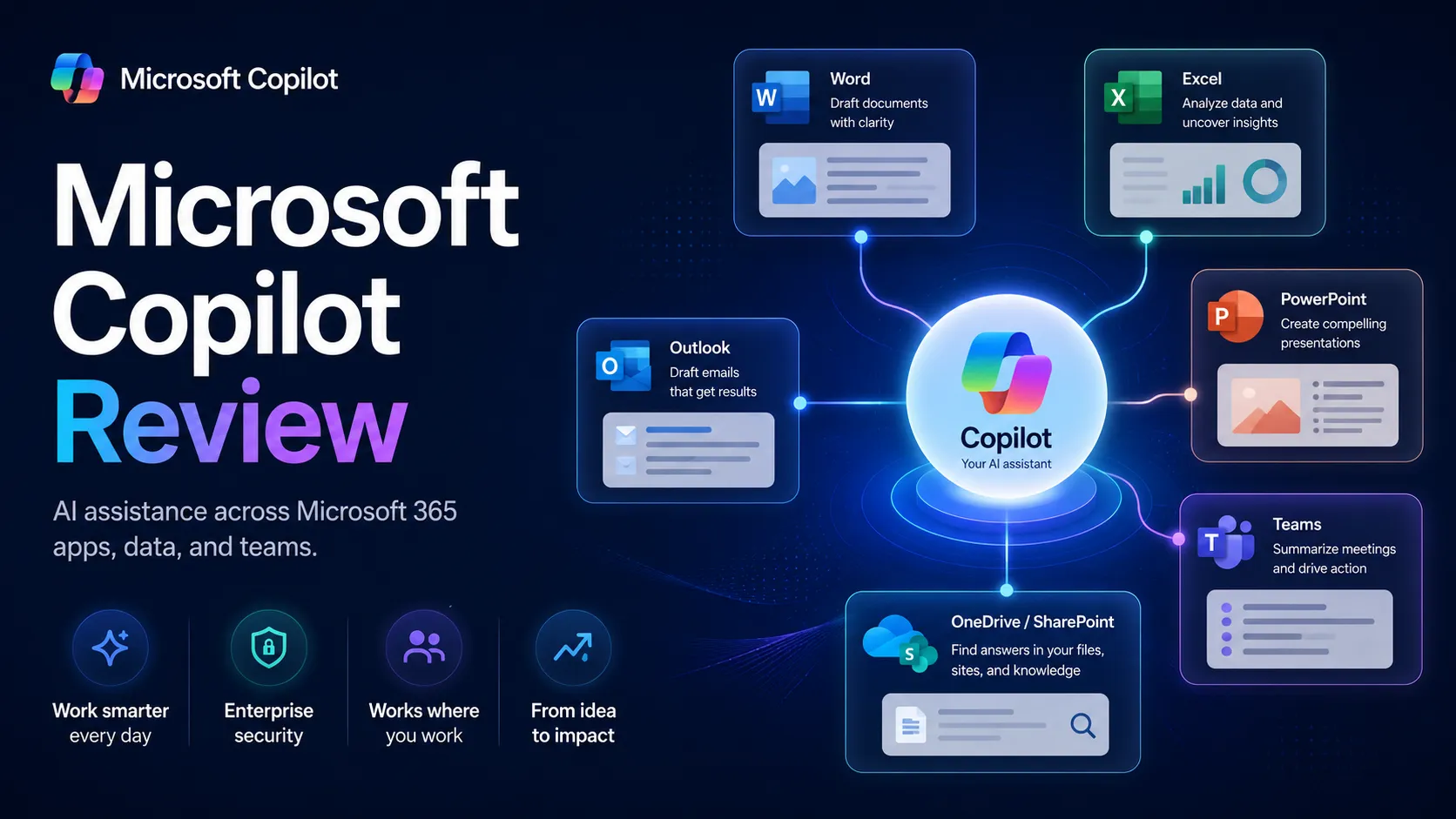
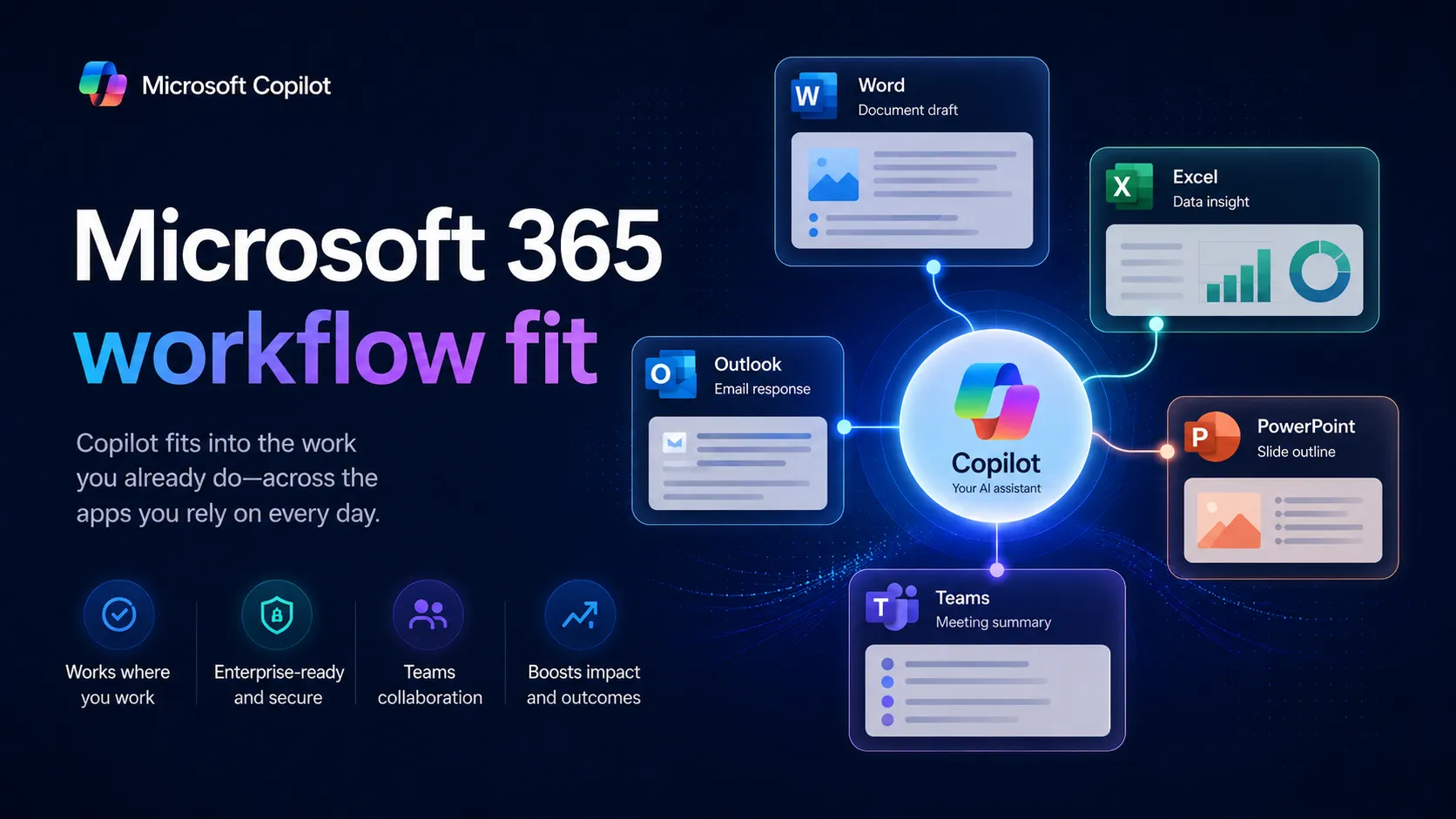
- ✓ You want AI help inside Word, Excel, PowerPoint, Outlook, Teams, and Copilot Chat instead of switching to a separate assistant for every task.
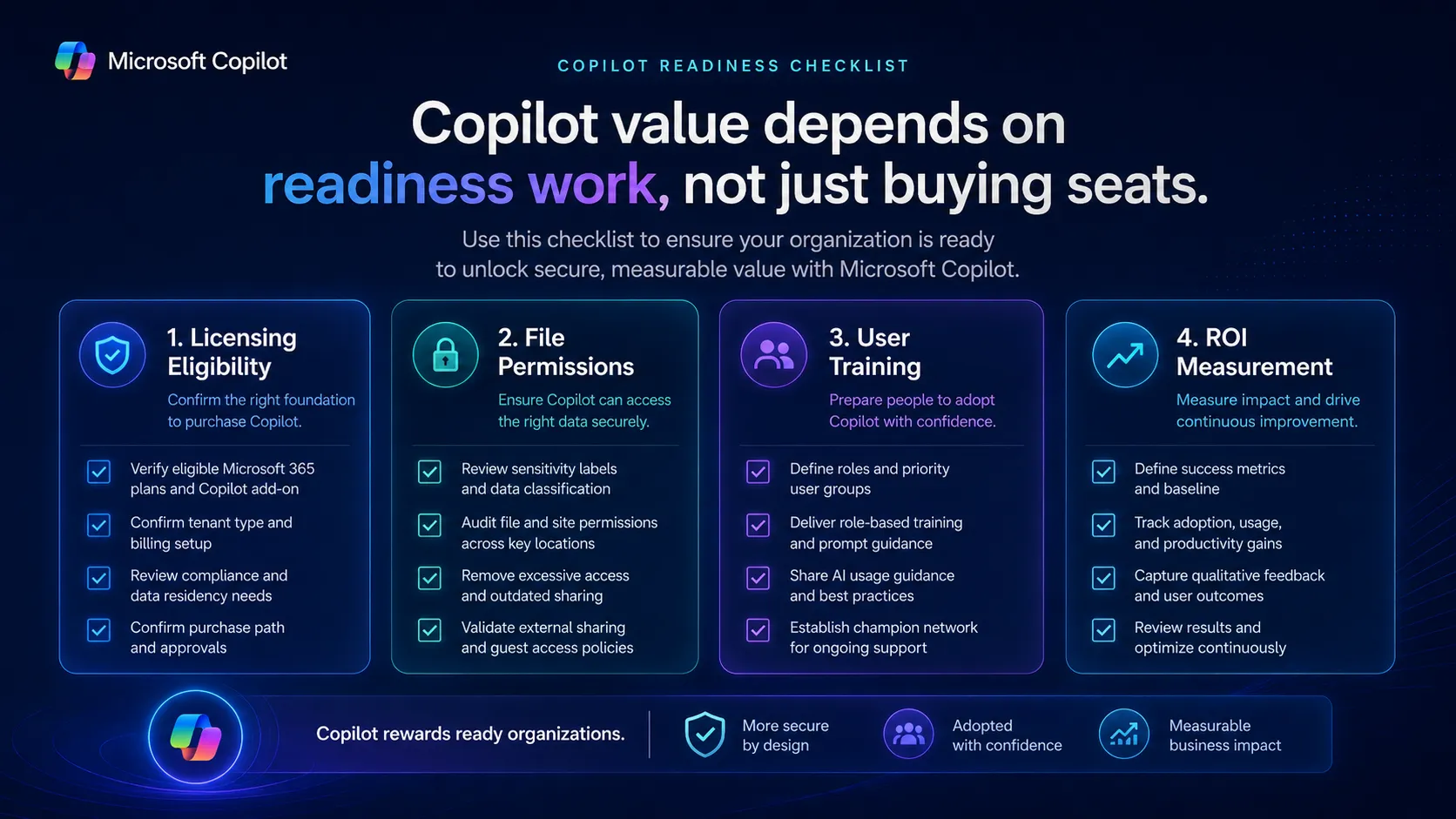
- ✓ Your organization can handle licensing, permissions, training, and adoption work before rolling AI out broadly.
- ✓ The biggest pain is turning meetings, emails, files, and documents into first drafts, summaries, decisions, and next steps.
Skip it if…
- – You mainly need a general-purpose chatbot for personal use and do not care about Microsoft 365 integration.
- – Your company knowledge is scattered across tools outside Microsoft 365.
- – You need specialist creative generation, developer workflows, SEO research, or marketing automation more than office-productivity assistance.
- – You are not ready to review permissions, governance, user training, and ROI before buying seats.
Review scorecard
Scored by workflow fit, ease of use, value, and stack compatibility. Weights reflect importance for typical buyers.
| Criteria | Score | ||
|---|---|---|---|
| Workflow fit | 8.8 | ||
| Output quality | 7.8 | ||
| Ease of use | 8.4 | ||
| Pricing clarity | 7.0 | ||
| Stack value | 8.2 | ||
| Weighted overall | 8.1 / 10 | ||
On this page
What this means in practice
Microsoft Copilot is not just another AI chat box with a famous logo on it. The practical reason to care about it is much narrower: it is Microsoft’s attempt to put AI directly inside the place many teams already work all day.
That matters because most office work does not start from a blank chat window. It starts from a messy inbox, a half-finished Word document, a spreadsheet that someone else built, a Teams meeting with decisions buried in the transcript, or a PowerPoint deck that needs to be turned around before the end of the day. Copilot is strongest when it can help with that kind of work in context.
So the review question is not simply, “Is Microsoft Copilot better than ChatGPT?” That is too broad. The better question is: “Does your team already have enough useful work happening inside Microsoft 365 for Copilot to save meaningful time?”
If the answer is yes, Copilot can be a serious productivity layer. If the answer is no, it can feel expensive, redundant, or too tightly attached to an ecosystem you are not fully using.
Who should use Microsoft Copilot
Microsoft Copilot makes the most sense for organizations that already treat Microsoft 365 as the operational center of the business. If files live in SharePoint or OneDrive, meetings happen in Teams, email runs through Outlook, documents are built in Word, and reporting still touches Excel, Copilot sits close to the work instead of asking users to move everything into a separate AI app.
The best-fit buyer is usually not the person who wants to play with AI for fun. It is the manager, analyst, operations lead, consultant, sales team, HR team, or internal knowledge worker who spends too much time turning scattered work into usable output.
Typical strong use cases include summarizing meetings, drafting follow-up emails, creating document outlines, pulling a first-pass summary from internal files, turning notes into slides, and asking questions about work content that the user is allowed to access. None of that removes the need for judgment. But it can remove some of the blank-page and “where did we discuss that?” friction that slows office teams down.
Copilot also makes sense for IT-led organizations that prefer AI adoption to happen inside a governed Microsoft environment rather than through dozens of unmanaged personal AI accounts. That does not make the rollout automatic. It does mean the buying conversation can include admin controls, license assignment, permissions, training, and governance from the start.
Who should skip Microsoft Copilot
Skip Microsoft Copilot if your team is not truly a Microsoft 365 team. A company that lives in Google Docs, Gmail, Slack, Notion, Figma, and specialist SaaS tools may not get enough value from Copilot to justify a Microsoft-first AI layer.
Solo users should also be careful. The free Copilot experience may be useful for casual questions and general help, but the paid Microsoft 365 Copilot decision is a different kind of purchase. It is not just a chatbot subscription; it is a work-productivity add-on that makes the most sense when the surrounding Microsoft workflow is already valuable.
Creative teams may also need something else first. Copilot can help with outlines, drafts, summaries, and productivity workflows, but it is not a replacement for Midjourney, Adobe Firefly, Runway, Canva AI, Surfer SEO, Descript, or developer-focused coding tools. It is a horizontal productivity assistant, not a specialist production suite.
The other group that should pause is any organization with messy permissions. If sensitive files are poorly organized, outdated, duplicated, or visible to too many people, adding an AI assistant on top can expose governance problems faster. Copilot is most useful when the underlying knowledge base is reasonably clean.
Real workflow fit
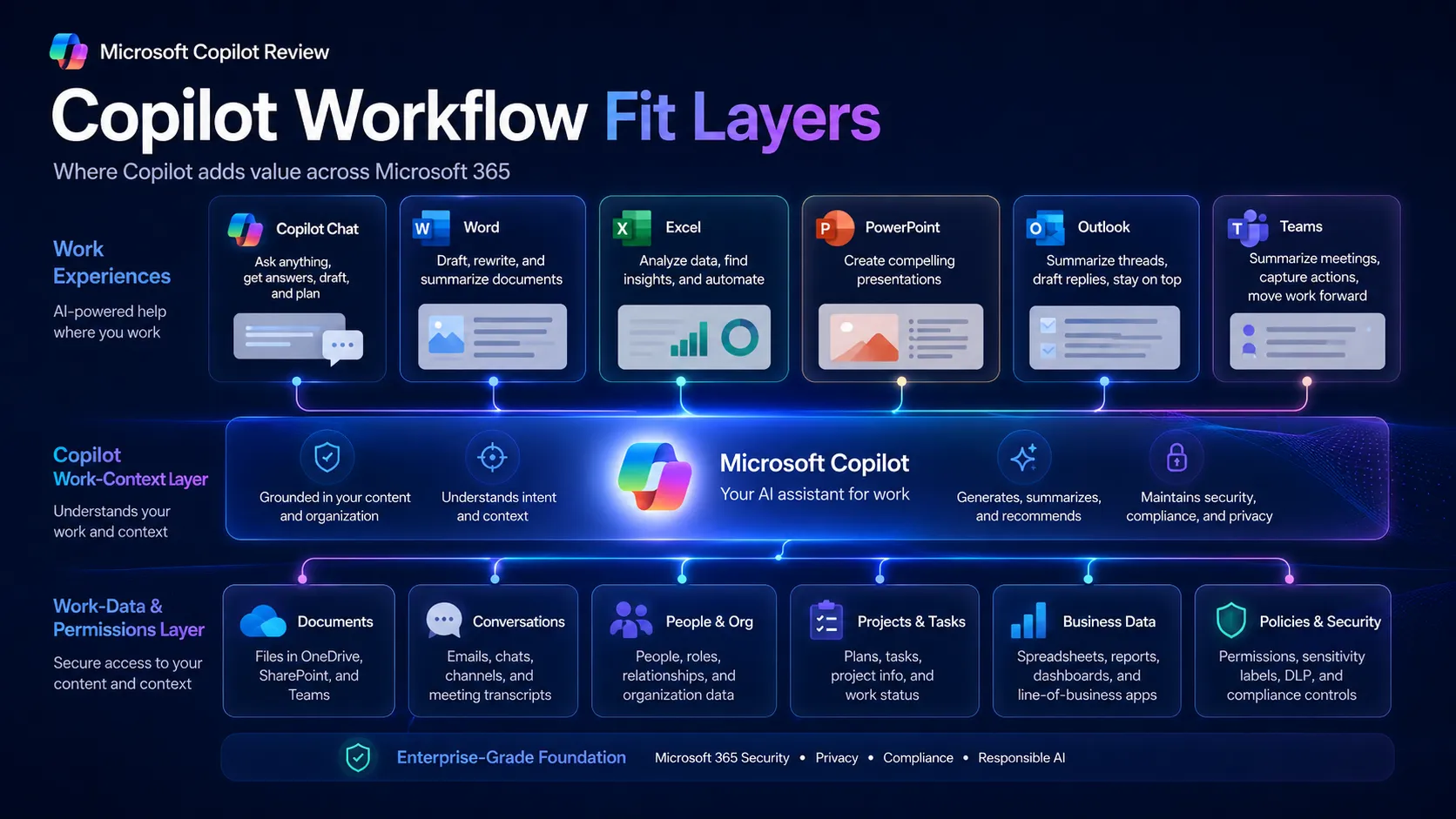
In a practical AI stack, Microsoft Copilot belongs in the Microsoft 365 productivity layer. It helps with the work that happens between meetings, documents, spreadsheets, decks, and internal communication.
A simple example: a team runs a Teams meeting, summarizes the discussion, turns decisions into follow-up emails, updates a planning document, and prepares a short executive slide. Without Copilot, that may involve copying notes across apps, asking a general chatbot to clean up text, checking context manually, and rewriting the result for each format. With Copilot, the promise is that more of that work can happen inside the Microsoft apps where the materials already live.
That workflow fit is the real selling point. Copilot is less about having the most charming chatbot personality and more about being close to the business artifacts people already use.
There is still a boundary. Copilot can summarize, draft, suggest, retrieve, and accelerate. It should not be treated as the final authority. Important emails still need human review. Financial analysis still needs checking. Executive decks still need a real point of view. Meeting summaries still need someone accountable for what was decided.
The best teams will use Copilot as a first-pass accelerator, not as an autopilot.
Pricing and plan fit
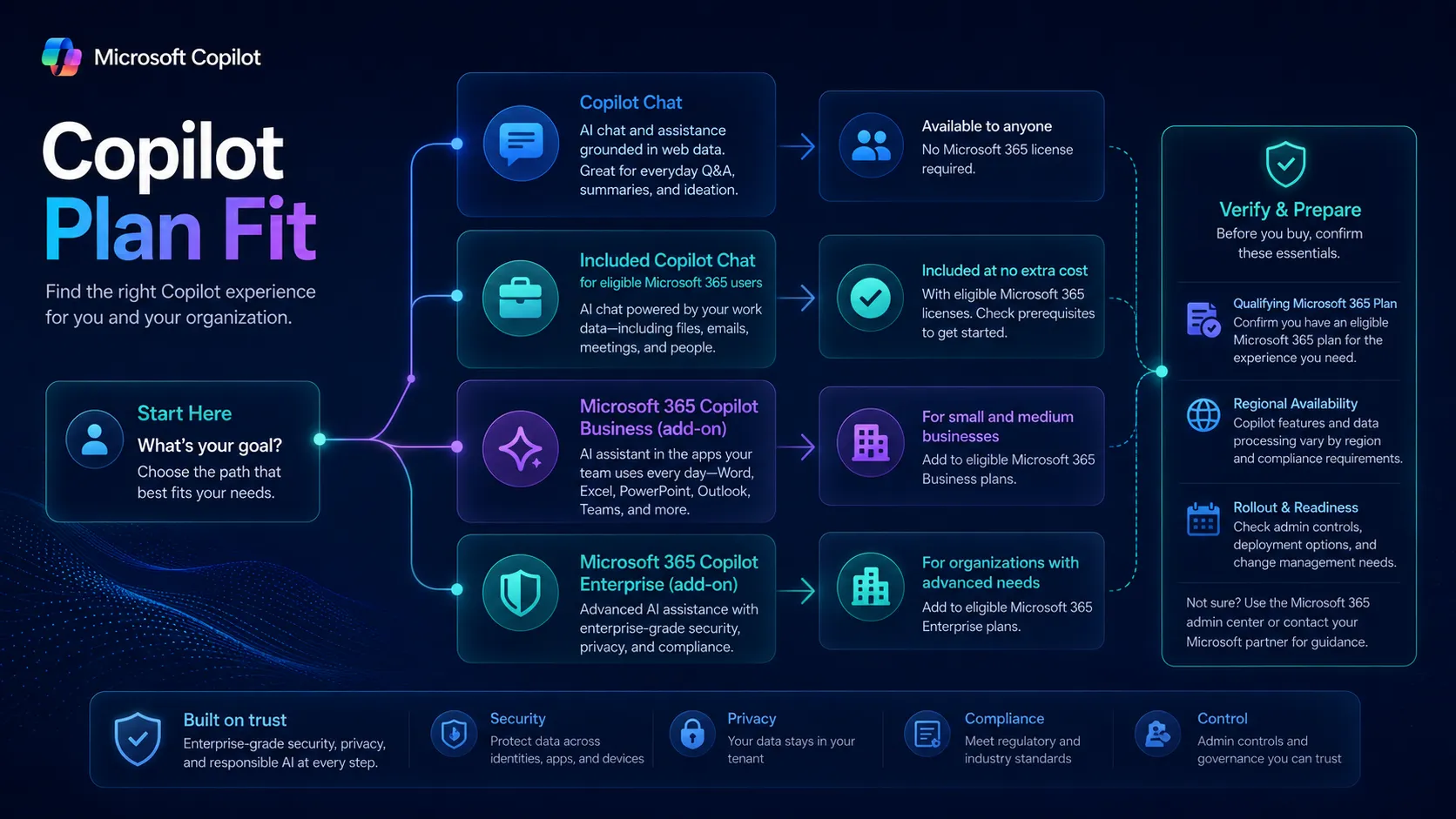
Pricing is where buyers need to slow down. Microsoft Copilot is not one simple plan for every use case.
There is the broad Copilot experience available through Microsoft’s consumer and web surfaces. There is Microsoft 365 Copilot Chat for eligible Microsoft 365 business and enterprise customers. Then there are paid Microsoft 365 Copilot plans for business and enterprise contexts, which can require a qualifying Microsoft 365 subscription and may vary by region, billing term, and account type.
The important buyer takeaway is simple: do not evaluate Copilot only by the headline price. Evaluate the full seat cost, the prerequisite Microsoft 365 plan, the rollout effort, and the actual number of users who will use it every week.
For a Microsoft-heavy team, the cost may be justifiable if Copilot reduces meeting admin, document drafting, inbox time, and repeated information lookup. For a team that only occasionally uses Microsoft apps, the same price can feel high compared with a flexible standalone assistant.
Before checkout, verify four things: whether your current Microsoft 365 plan qualifies, which Copilot edition applies to your organization size, whether a free trial is available for the specific product you want, and whether the price shown on Microsoft’s page applies to your region and billing term.
Strengths
The biggest strength is integration. Copilot is built around the Microsoft 365 work environment, which means it can meet users in apps they already know. That reduces the adoption barrier compared with a separate AI workspace that requires new habits.
The second strength is context. General AI tools are powerful, but they often need users to paste context manually. Copilot’s advantage is that it can be closer to work content, permission-aware organizational data, and Microsoft app workflows when deployed correctly.
The third strength is IT alignment. For organizations already managing Microsoft identity, security, and productivity tools, Copilot may be easier to govern than a patchwork of personal AI subscriptions. That matters for companies that care about compliance, permissions, and centralized rollout.
The fourth strength is everyday usefulness. Meeting summaries, email drafts, slide outlines, document rewrites, and quick internal knowledge lookup are not glamorous, but they are exactly the tasks many knowledge workers repeat all week.
Weak spots
The first weak spot is that Copilot’s value is uneven. A heavy Outlook, Teams, Word, Excel, and SharePoint user may find daily value. A user who mostly works in browser-based SaaS tools may barely touch it.
The second weak spot is rollout friction. Buying seats is easier than getting meaningful adoption. Teams need training, examples, governance, and a clear policy for what Copilot should and should not be used for.
The third weak spot is pricing complexity. Buyers need to separate consumer Copilot, Copilot Chat, Microsoft 365 Copilot Business, Microsoft 365 Copilot for enterprise, and any qualifying plan requirements. That is more complicated than comparing one $20 chatbot subscription with another.
The fourth weak spot is user control. Recent public coverage shows that some users dislike prominent AI buttons or intrusive interface placement. That does not make Copilot a bad product, but it does show that Microsoft needs to balance AI visibility with user preference.
The final weak spot is specialization. Copilot can help with many office tasks, but it is not the best tool for everything. Serious research may still benefit from Perplexity. Long-form writing may still benefit from Claude. General AI exploration may still fit ChatGPT. Visual production still belongs elsewhere.
Alternatives worth considering
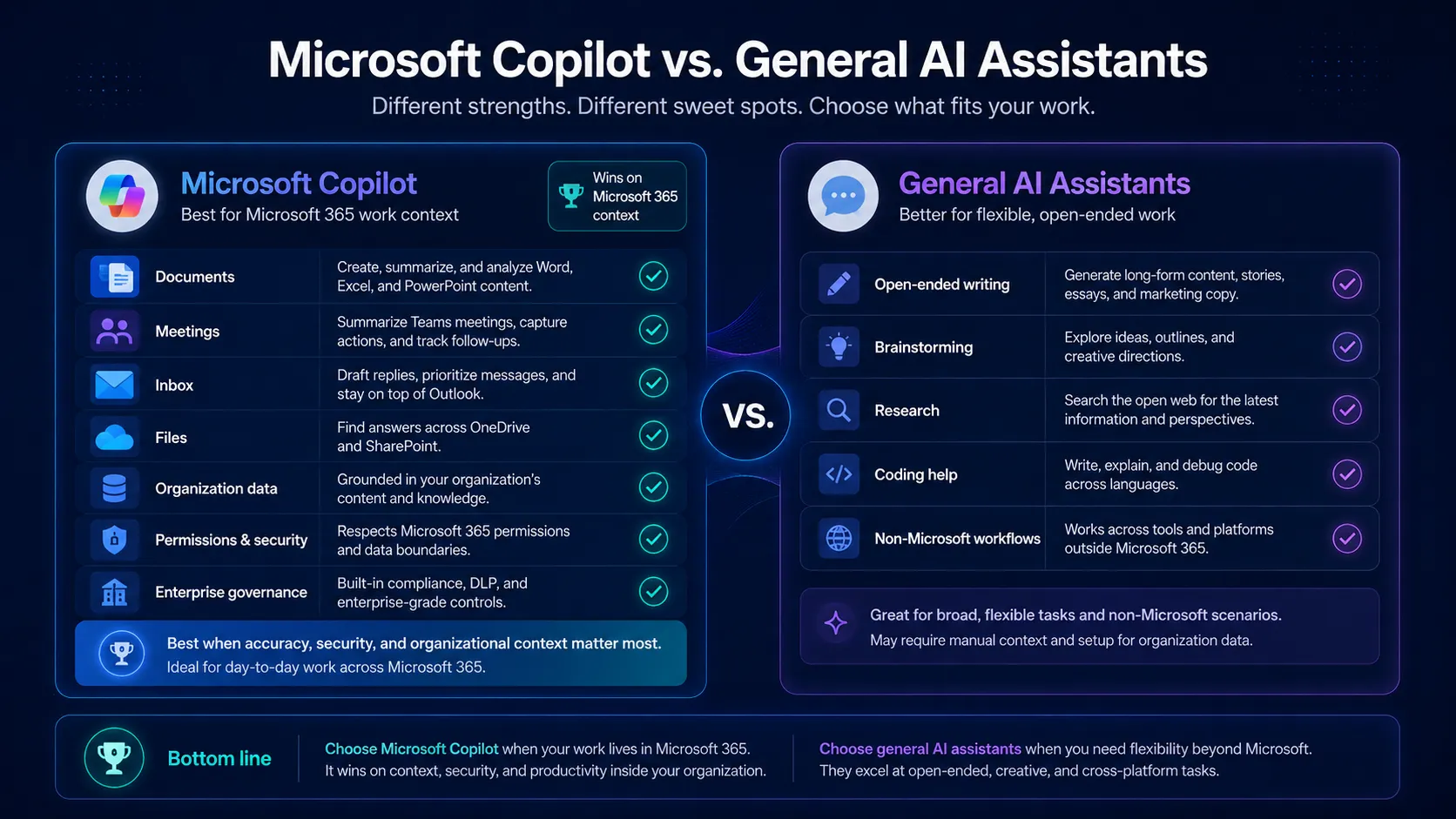
ChatGPT is the clearest alternative if you want a general AI assistant first and Microsoft 365 integration second. It is usually easier to treat as a flexible personal or team assistant for writing, brainstorming, coding help, explanations, and open-ended problem solving.
Claude is worth considering if your main work is long-document reading, nuanced writing, editing, or careful reasoning. It is not a Microsoft 365 workflow layer, but it can be excellent for document-heavy thinking when you manually provide the right context.
Gemini is the more natural comparison for Google Workspace users. If your team lives in Gmail, Docs, Drive, Calendar, and Google services, Gemini may fit the surrounding workflow better than Copilot.
Perplexity is not a direct replacement, but it can be a better research companion when the task is current web research with citations. Copilot can be useful for work context, but a dedicated answer engine may be cleaner for external research tasks.
The safest way to choose is by workflow center. Microsoft 365 team: start with Copilot. General AI assistant: compare ChatGPT and Claude. Google Workspace team: compare Gemini. Research-heavy team: add Perplexity to the stack.
Final verdict
Microsoft Copilot is a strong buy only when the surrounding Microsoft 365 workflow is strong. That is the whole story.
For Microsoft-first organizations, Copilot can become a useful layer for summarizing, drafting, searching, and transforming everyday work. It is especially compelling for teams drowning in meetings, documents, emails, and internal knowledge.
For everyone else, it deserves more caution. If your work does not live in Microsoft 365, Copilot may feel like a premium add-on attached to apps you do not use deeply enough. In that case, a general assistant such as ChatGPT or Claude may deliver more flexible value for less operational complexity.
My practical recommendation: pilot Copilot with a small group of heavy Microsoft 365 users before buying broadly. Choose people who live in Outlook, Teams, Word, PowerPoint, Excel, SharePoint, or OneDrive. Measure whether it actually reduces meeting follow-up, document drafting, email handling, and internal lookup time. If those users cannot get repeated weekly value, a wider rollout will probably disappoint.
If they can, Copilot becomes much easier to justify — not because it is the flashiest AI assistant, but because it is close to where the work already happens.
Frequently asked questions
Is Microsoft Copilot worth it?
Does Microsoft Copilot have a free version?
How much does Microsoft 365 Copilot cost?
Who should use Microsoft Copilot instead of ChatGPT?
Is Microsoft Copilot good for small businesses?
Does Microsoft Copilot replace employees or specialist tools?
Where Microsoft Copilot fits in a stack
Microsoft 365 productivity and work-context assistant layer
Does not replace
- – Human review and business judgment
- – Clean knowledge management and permission governance
- – Specialist research, coding, SEO, design, or video tools
- – A complete automation platform such as Zapier, Make, or n8n
Top alternatives to consider
If Microsoft Copilot is not the right fit, these are the most common alternatives.

ChatGPT is usually a better first pick for broad general-purpose AI help, creative drafting, coding support, and flexible personal workflows outside Microsoft 365.

Claude is often a better fit for long-document reasoning, nuanced writing, and careful editorial work when Microsoft 365 integration is not the main buying reason.

Gemini is the more natural alternative for Google Workspace users who want AI closer to Gmail, Docs, Drive, and Google search workflows.
Review methodology
Editorial review based on current official Microsoft product pages, Microsoft pricing and licensing pages, support documentation, public video resources, and current third-party review coverage. No hands-on benchmark testing was conducted.
This review is based on public product information and research, not direct hands-on testing.
Not covered: Hands-on benchmark testing · Private enterprise contract terms · Tenant-specific security configuration review · Seat-by-seat ROI audit